


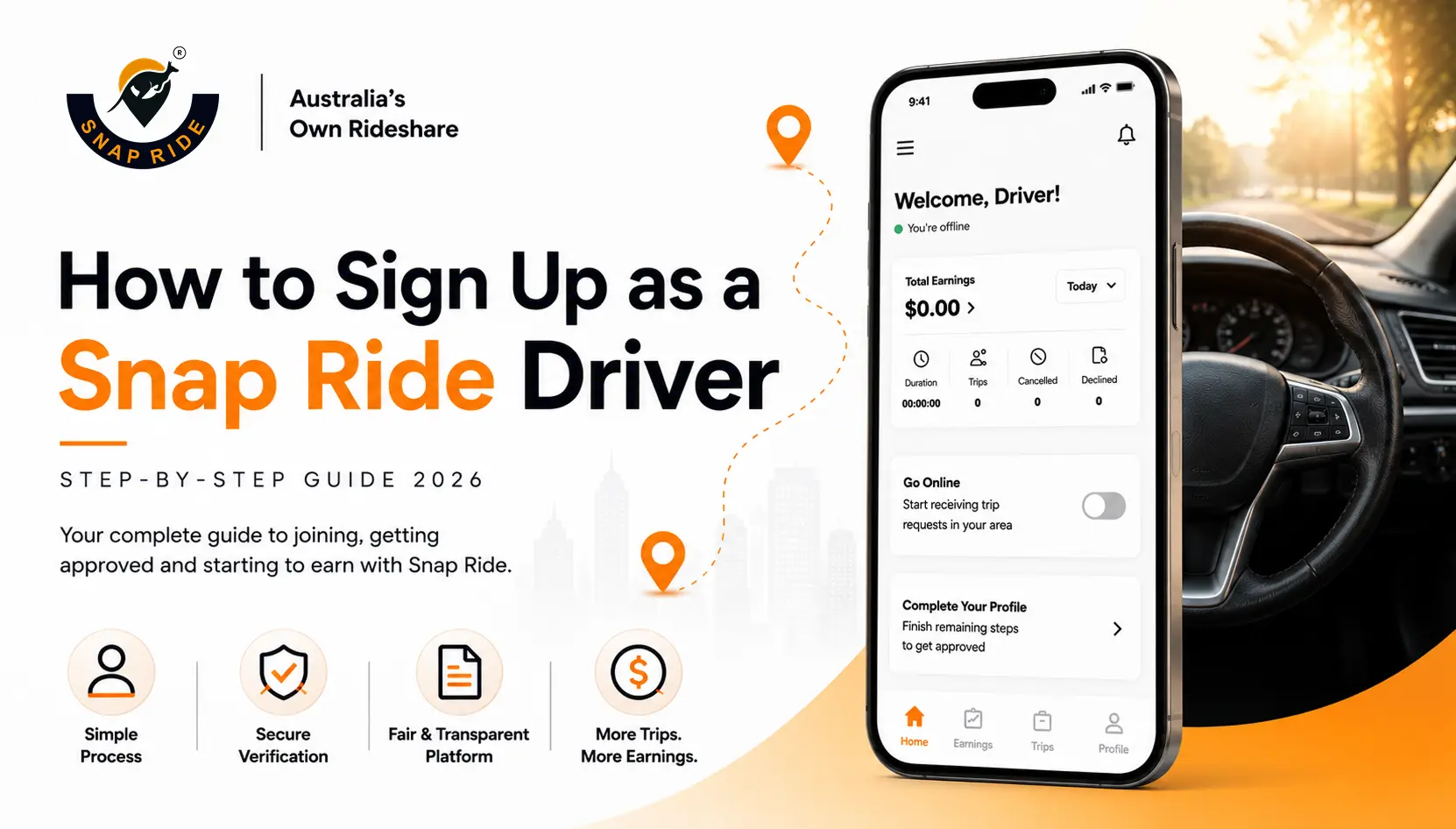
Most drivers who abandon a rideshare signup process do it somewhere between the document upload screen and the payout account setup, not because those steps are hard, but because nobody told them what was coming. This guide covers every screen of the Snap Ride driver signup process in order, from the first tap to your first trip request, so nothing catches you off guard. If you're looking to sign up as a Snap Ride driver in 2026, this is the only page you need.
Minimum Requirements to Become a Snap Ride Driver
The Snap Ride driver signup asks for more detail than a standard app signup because it combines your identity, your vehicle, your compliance documents, and your payout account in a single onboarding flow. Having everything ready before you start saves you from stopping mid-process to hunt for a document number.
What You'll Generally Need
- Driving licence: front and rear, you'll photograph and upload both
- Driver accreditation: the accreditation number required to drive for hire in your state is listed in the app as Driver Accreditation Number (DC)
- Vehicle details: registration number, make, model, colour, VIN/chassis number, year of manufacture, and whether it's owned or rented
- Insurance documents: motor vehicle insurance and, depending on your state, 3F Motor Injury Insurance and PTV/PTV Authorization
- Identity proof: passport, IMMI card, or equivalent if you're not an Australian citizen or permanent resident
- Banking details: BSB number, bank account name, and account number for your payout setup
- ABN: Australian Business Number. If you have one, the Stripe payout setup asks for this, but you can proceed without one
- State-specific: The exact documents required differ by state. The app shows your specific list after you select your state. Check that screen before gathering documents; requirements vary meaningfully between NSW, VIC, WA, SA, NT, and the ACT.
Step 1: Download the Snap Ride Driver App

The Snap Ride platform has two completely separate apps. The rider app and driver app are different downloads; this guide is only about the driver app.
- App Store (iOS): search 'Snap Ride Driver' and look for the app subtitled 'Drive & Earn'
- Google Play (Android): search 'Snap Ride Driver '. The package ID is au.com.snapride.driver
Do not use the rider app to sign up as a driver; the two accounts are separate.
Step 2: Create Your Account

The first screen after the onboarding splash gives you two options: Log In (for existing accounts) or Sign Up. Tap Sign Up.
- Enter your email address.
- Create a password with a minimum of 8 alphanumeric characters. The app will not accept a password shorter than this or one without both letters and numbers.
- Confirm the password in the second field
- Tick the T&C and Privacy Policy checkboxes
- Tap Sign Up or use the Apple or Google buttons below if you prefer to use an existing account.
Step 3: Allow Location Access

The app asks for background location access so it can match you with riders nearby and track your position during trips even when the app isn't the active screen on your phone. Tap Allow to proceed. Without this, the matching system cannot function.
Step 4: Select Your State

The next screen asks you to select the state you'll be driving in. The full list is: Australian Capital Territory, New South Wales, Northern Territory, Queensland, South Australia, Tasmania, Victoria, and Western Australia.
This selection determines which specific compliance documents the app will ask you to upload in the next step. Select the state where your vehicle is registered and where you intend to drive.
Step 5: Review Your State Document Requirements

After selecting your state, the app shows the specific documents required for that jurisdiction before you proceed. This screen is worth reading carefully; it tells you exactly what you need to have ready before the upload step.
What the App Displays for Each Document
Each document entry shows the document name, a brief description, and a note on who needs to submit it, for example, whether it applies to citizens and permanent residents only, or also to temporary residents and international student visa holders.
For Victoria, for example, the required documents include: Driver Accreditation Certificate, Driving Licence (front and rear), and an IMMI Card or Passport for anyone who is not an Australian citizen or permanent resident. Other states have different lists; the app shows yours specifically.
Tap Continue when you have reviewed the requirements for your state.
Step 6: Complete Your Driver Profile

The Create Profile screen is the longest single step in the signup process. It combines your personal details, business registration, banking information, and driver accreditation in one form. Work through it from top to bottom.
Personal Details
- Face photo: tap the camera icon at the top and upload a clear, current photo of your face
- First and Last Name: as they appear on your licence
- Email Address: the same email used to create your account
- Mobile Number: Australian mobile with the +61 country code preselected
- Date of Birth: use the date picker
- Residency Status: select from the dropdown: CitizenPR, Other, Student, or Temporary Resident. This determines which identity documents will be required later.
- Gender: Male or Female
- City: select your city from the dropdown
- Residence Address and Post Code: your home address
Business and Banking Details
- ABN Number: Enter your Australian Business Number if you have one. If you don't have an ABN, you can select 'I do not have an ABN' during the Stripe payout setup later.
- Business Name or Entity Name: If you operate under a business name rather than your own name
- Bank Account Name, BSB Number, Bank Account Number: the Australian bank account where your earnings will be paid
Licence and Accreditation
- Driving License Number: as printed on your current Australian driving licence
- Driver Accreditation Number (DC): This is your Passenger Transport Driver accreditation number required to legally drive for hire in Australia. The exact name of this accreditation varies by state.
- GST Registered: Yes or No, tick whichever applies to your ABN registration status
- Registered Address: your business or registered address if different from your home address
Tap Send Me OTP when all fields are complete.
Step 7: Verify Your Mobile Number

A 6-digit OTP code arrives by SMS to the mobile number you entered. Enter it in the six boxes on the verification screen and tap Verify Code.
If the code doesn't arrive within a minute, tap Resend Code. Make sure the mobile number you entered is correct and active. You cannot proceed without completing this step.
Step 8: Enter Your Vehicle Information

The Vehicle Information screen collects the details of the car you'll be driving. Have your registration papers and vehicle details ready.
- Car Registration Number: your number plate as registered
- Car Company Name: the vehicle manufacturer, e.g., Toyota, Hyundai, Ford
- Car Model: e.g., Camry, i30, Ranger
- Car Colour: the colour as registered
- VIN / Chassis Number: found on your registration papers, usually 17 characters
- Year of Manufacturing: select from the dropdown
- Ownership: select Owned or Rental depending on whether you own the vehicle or drive a rental car
- Vehicle Type: select from the dropdown, e.g., Snap Standard X. This sets your primary vehicle category and determines which ride types you'll be eligible for.
Tap Submit when all vehicle details are entered.
Step 9: Upload Your Documents

The Upload Documents screen shows two tabs: Pending and Uploaded. All documents start in the Pending tab. Tap Upload next to each document to photograph or select it from your gallery.
Documents Required (Confirmed from the Upload Screen)
The following documents appear on the upload screen; your state selection determines the exact list:
- PTV Authorization: your Passenger Transport Vehicle authorisation
- 3F Motor Injury Insurance: third-party personal injury insurance for your vehicle
- Driving Licence Front: front side of your current Australian driving licence
- Driving Licence Rear: back side of your current Australian driving licence
- Identity Proof: passport, IMMI card, or equivalent identity document
- Motor Vehicle Insurance: your current comprehensive or third-party vehicle insurance
What Happens After Upload
Once a document is uploaded, it moves from the Pending tab to the Uploaded tab and shows a status of either Pending Review or Approved. You can view what you've submitted and update any document if needed using the Update button.
Tap Submit once all documents have been uploaded. The Snap Ride team reviews each document manually, which is why the approval process takes time.
Photo tip: Documents photographed on a flat, well-lit surface with no glare, shadows, or cropping tend to be approved faster. Make sure all four corners of each document are visible in the frame.
Step 10: Set Up Your Payout Account (Stripe)

Snap Ride uses Stripe, one of Australia's most widely used payment processing platforms, to handle all driver earnings and payouts. After submitting your documents, the app moves into the Stripe payout account setup.
What the Stripe Setup Involves
- The screen confirms that 'Snap Ride Pty Ltd partners with Stripe for secure payments and financial services.’ Tap through to get started
- Enter your Australian mobile number (+61) and email address
- Verify your Stripe login by entering the code sent to your phone
- Tell Stripe about your business. The app defaults to Individual / Sole Trader with Australia selected. Select whether you have an ABN or not.
- Continue through the remaining Stripe verification steps
Note on ABN: If you do not have an ABN, select 'I do not have an ABN' when prompted. You can still complete driver signup and receive earnings without one, though you may wish to register for an ABN separately through the ATO if you plan to earn regularly.
Step 11: Wait for Your Driver Account Approval

After completing all steps, the app displays a verification confirmation screen. This is what it says:
In-app message: Your account is under verification. Kindly wait for our team to verify the details furnished by you. This may take up to 5 to 10 business days for verification. The session automatically logs out after 1 minute. Use the Contact Support button if you have questions during the review period.
During this period, the Snap Ride team checks your documents, your accreditation, and your vehicle details against state compliance requirements. You'll receive a notification once the review is complete.
The Stripe dashboard will also show your balance as 'On hold' and display an 'In review' badge while verification is in progress. This is normal; it lifts once your account is approved.
After Approval Community Policy
Once approved, the app walks you through the Snap Ride Community Policy before you can go online. This is a swipeable three-screen sequence covering three topics:
Everyone Must Be Respected
- Physical contact with riders should be avoided
- No dangerous or disrespectful behaviour
- No contact with riders after the trip has ended
- No discriminatory practices of any kind
Encourage Each Other Through Staying Safe
- Everyone in the vehicle is required by law to wear a seatbelt at all times
- Dash cams and camera surveillance units are required in accordance with state-specific regulations. Standards vary by state.
- Vehicles must be kept maintained at all times, including brakes, seat belts, and tyres.
- Always practice safe behaviour on the road
Honour the Law
- Use of drugs or alcohol while on the Snap Ride platform is strictly prohibited
- Drivers, riders, and guests are not permitted to carry firearms unless specifically authorised by law.
- Any fraudulent activity results in being barred from the platform and may result in legal action.
- Street hailing and accepting payment outside the Snap Ride app are both prohibited; all payments must go through the platform.
Step 12: Go Online and Start Receiving Trip Requests

Once your account is approved and the community policy is acknowledged, you land on the driver home screen. This is where you go online to start receiving trip requests.
What the Home Screen Shows
- Stats panel: Total Duration, Total Earnings, Cancelled Rides, Declined Rides, and Successful Rides all start at zero
- Invite A Friend: your referral link is accessible here from day one
- GO ONLINE toggle: the main switch to start receiving trip requests
- Car Type: shows your primary vehicle type (e.g., Snap Standard X) and any secondary categories you've opted into (e.g., Snap Pet Ride). Confirm this is correct before going online.
How to Go Online
- Check that the Car Type shown matches the vehicle you're driving today
- Toggle the GO ONLINE switch
- A confirmation modal appears: 'You're about to go online and start receiving trip requests. Please ensure you're ready and have selected the correct car type before proceeding.'
- Tap CONFIRM. The map view loads, and the button at the bottom changes to GO OFFLINE
You are now live and will start receiving trip requests from nearby riders.
How Trip Requests Work
Trip requests appear as a pop-up over the map. You have a limited window to accept or decline; if you don't respond, the request moves to another driver.
What the Request Shows You
- Ride type: e.g., Snap Standard X, the vehicle category the rider has selected
- Drive to Pick Up: the full pickup address, estimated pickup time in minutes, and pickup distance in kilometres.
- Drive to Destination: the full drop-off address, estimated destination time in minutes, and destination distance in kilometres.
You see both the pickup and destination details before making a decision. Tap ACCEPT to take the trip or DECLINE to pass it to another driver.
The Four Stages of a Trip
- Drive to pick up and navigate to the rider's location: The bottom bar shows 'Drive To Pick Up: X min' and the rider's name, star rating, and address. Tap ARRIVED when you reach the pickup point.
- Wait for Rider: the timer shows how long you've been waiting. Chat with Rider, Call Rider, Emergency, and Cancel Ride buttons are all available. Tap START TRIP once the rider is in the vehicle.
- Drive to Dropoff: navigate to the destination. The bar shows 'Drive To Drop Off: X min'. Tap END TRIP on arrival.
- Review: the trip earnings are shown immediately (e.g., $12.75 for a completed trip). Rate the rider out of 5 stars and tap Submit.
Keep the app open: The intrip screen displays a reminder: 'Please do not close, crash, or terminate the app.' Keep the driver app active throughout the trip for GPS tracking and payment to work correctly.
How Driver Payments and Earnings Work
The Pocket tab at the bottom of the driver app is where all earnings are tracked. The Stripe Dashboard inside the app is where payouts are managed.
Pocket Tab
- Total Trip Earnings: your cumulative earnings from all completed trips
- Total Trips: total successful trip count
- Trip history tabs: filter between Successful, Rider Cancelled, and Cancelled trips
- Sign in Stripe button: takes you directly into your payout dashboard
Stripe Dashboard
- Total balance: your current total balance in Australian dollars
- Available to pay out: the amount you can withdraw right now
- Transactions: view by All or Payouts, filter by Date or Type, or Export for records
- Earnings chart: view your earnings trend over 1 week, 4 weeks, 3 months, or 1 year
On hold status: New accounts show 'On hold' next to the total balance and an 'In review' badge while Stripe is verifying your account details. This is a standard Stripe Connect process and lifts once verification is complete. You do not need to take any action.
Driver Bonuses and Referral Program
Snap Ride's driver reward structure pays out continuously, not just on signup. Every bonus is independent; completing one doesn't affect the others.
- $100 Welcome Bonus: paid to every approved driver upon joining
- $1,000 Airport Bonus: awarded after completing your first 50 airport pickup trips
- $50 per driver referred: paid when a driver you've referred joins and becomes active, up to 50 drivers per referral code
- 20 cents per trip: ongoing earnings for every trip a driver you've referred completes, with no expiry
- Network milestone bonuses: larger bonuses at network trip milestones, $1,000, $5,000, $10,000, $20,000, scaling up to $50,000 based on the total trips completed across your full referral network
Full terms for all bonuses are on the Snap Ride driver offers page.
Tips for New Snap Ride Drivers
- Photograph documents before you start: take clear, flat, well-lit photos of your licence, accreditation, and insurance documents before opening the app. It's faster than photographing them one at a time during the upload step.
- Select your vehicle type carefully: once you're online, ride requests are matched to the vehicle type you've selected. If you're in a 4-seat car, make sure Snap Standard X or Snap Supreme X is selected, not an XL category
- Check your car type before every shift: if you drive different vehicles on different days, verify the Car Type on the home screen before going online each time.
- Keep the app open during trips: the GPS tracking, fare calculation, and payment all depend on the app staying active throughout the ride.
- Respond to trip requests promptly: requests that go unanswered are automatically passed to another driver. Declining too many requests in a row may affect your account standing.
- Tap ARRIVED before START TRIP: the app moves through stages sequentially; you need to confirm arrival at pickup before you can start the trip. This protects both you and the rider.
- Rate every rider: the two-way rating system is how the platform maintains quality on both sides. Taking 5 seconds to rate a rider after each trip contributes to a safer community
The Bottom Line
Signing up as a Snap Ride driver takes longer than a standard app registration because it involves compliance documents and a payout account, but every step is clearly signposted in the app. Having your documents photographed and your vehicle details ready before you start means the whole process can be completed in a single session, with your account under review by the end.
Once approved, the driver app gives you full control over when you work, which vehicle category you offer, and a live view of every dollar you earn, with a bonus structure that keeps paying out well beyond the initial welcome bonus.